
Product activation
Activating the Ozeki Android SMS Gateway is a straightforward process that unlocks the full capabilities of the OZEKI SMS Client 3.0 app on your Android device. After obtaining a valid license key, you navigate to the Product Activation screen via the app's Settings menu, enter your license code, and choose between online or manual activation. The online method connects to Ozeki's servers over the internet and completes the registration automatically in seconds, while the manual method allows activation without a direct connection by entering a provided activation code. Once activated, the gateway displays your license state, validity period, serial number, throughput capacity, and SIM limit — confirming the system is fully licensed and operational.
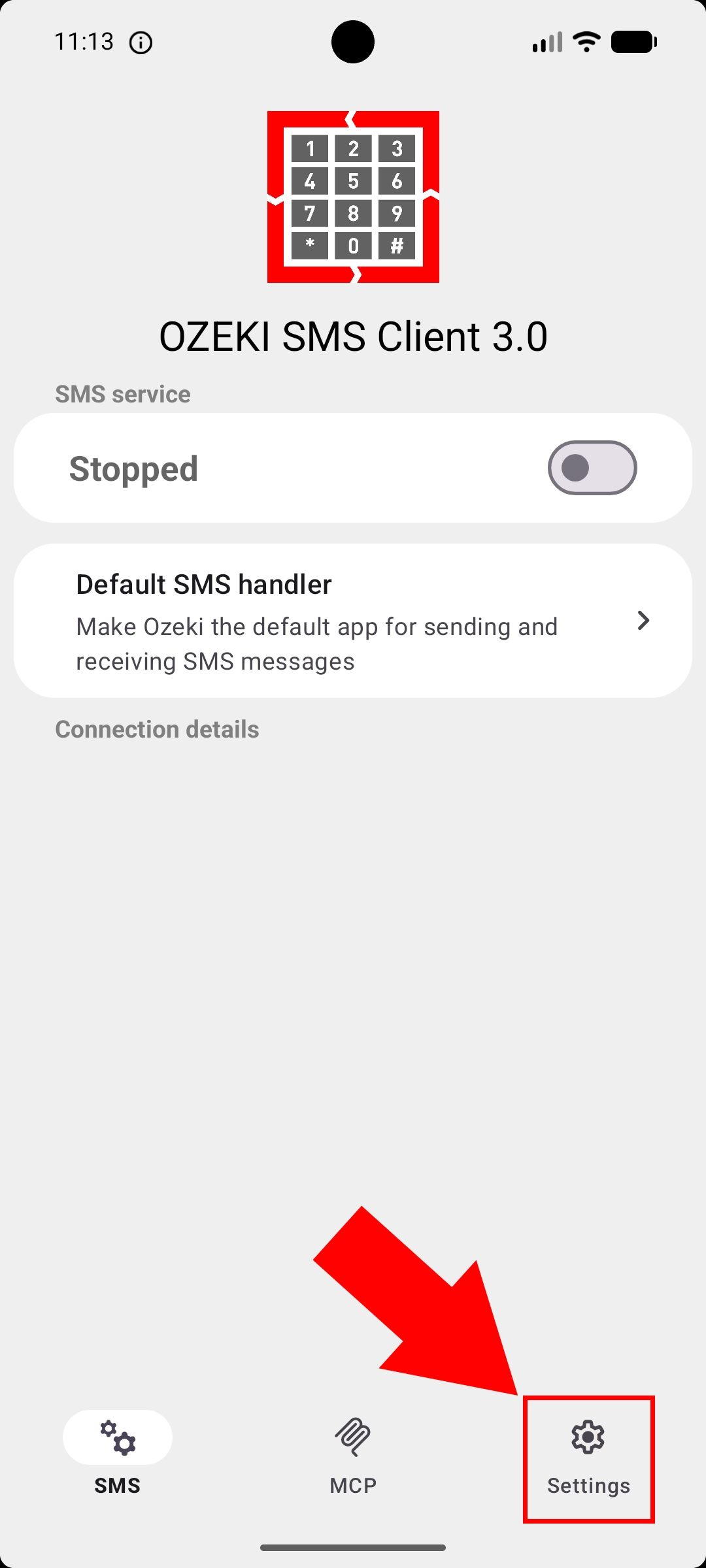
Launch the Ozeki SMS Client 3.0 app on your Android device, which will display the main screen showing the SMS service status and connection details. To begin the activation process, locate and tap the Settings icon found in the bottom navigation bar of the app. This will open the settings menu where you can access all configuration and licensing options for the gateway.
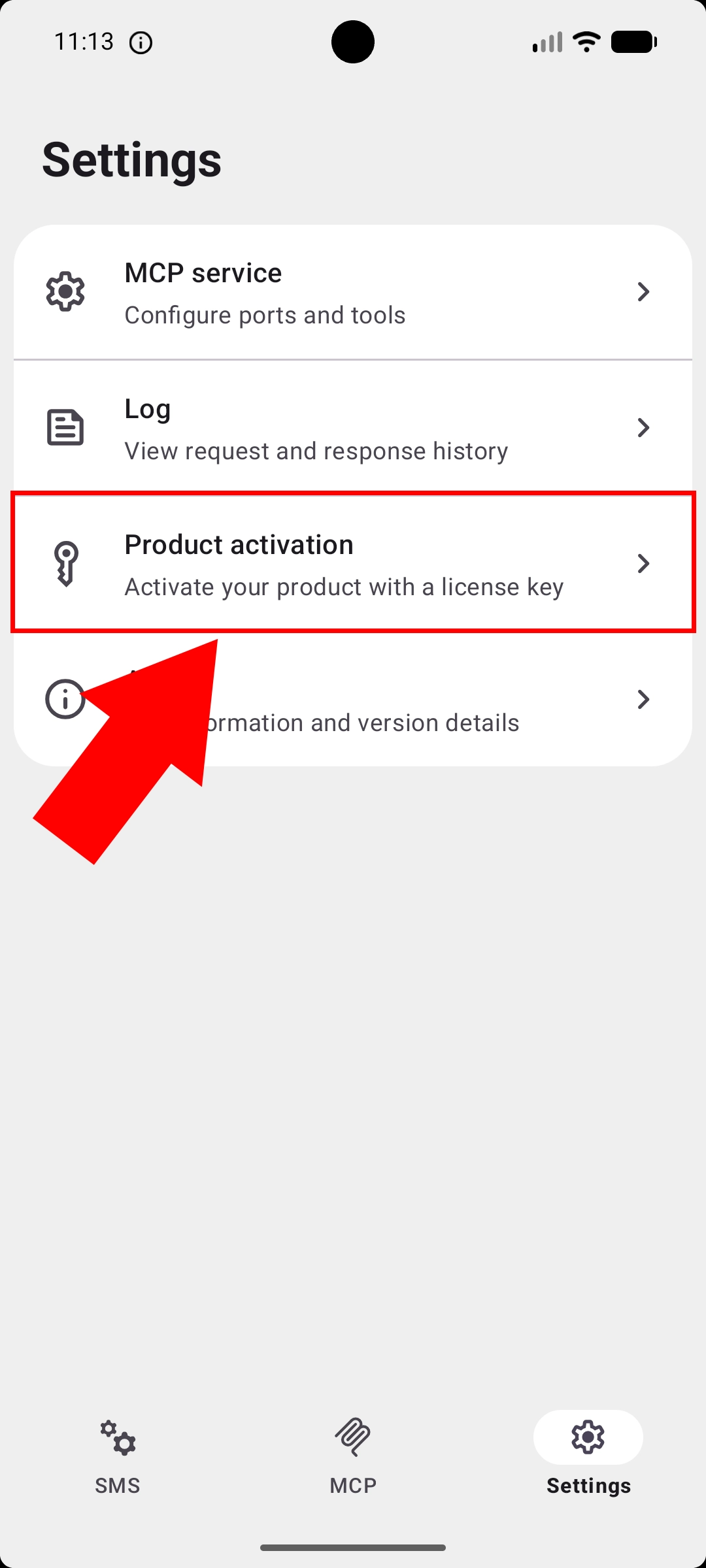
Once inside the Settings menu, scroll through the available options to find the Product activation entry. Tap on it to navigate to the activation screen, where the current license state (e.g., Trial) and expiry date will be displayed. This is the starting point for entering your purchased license code to unlock the full functionality of the gateway.
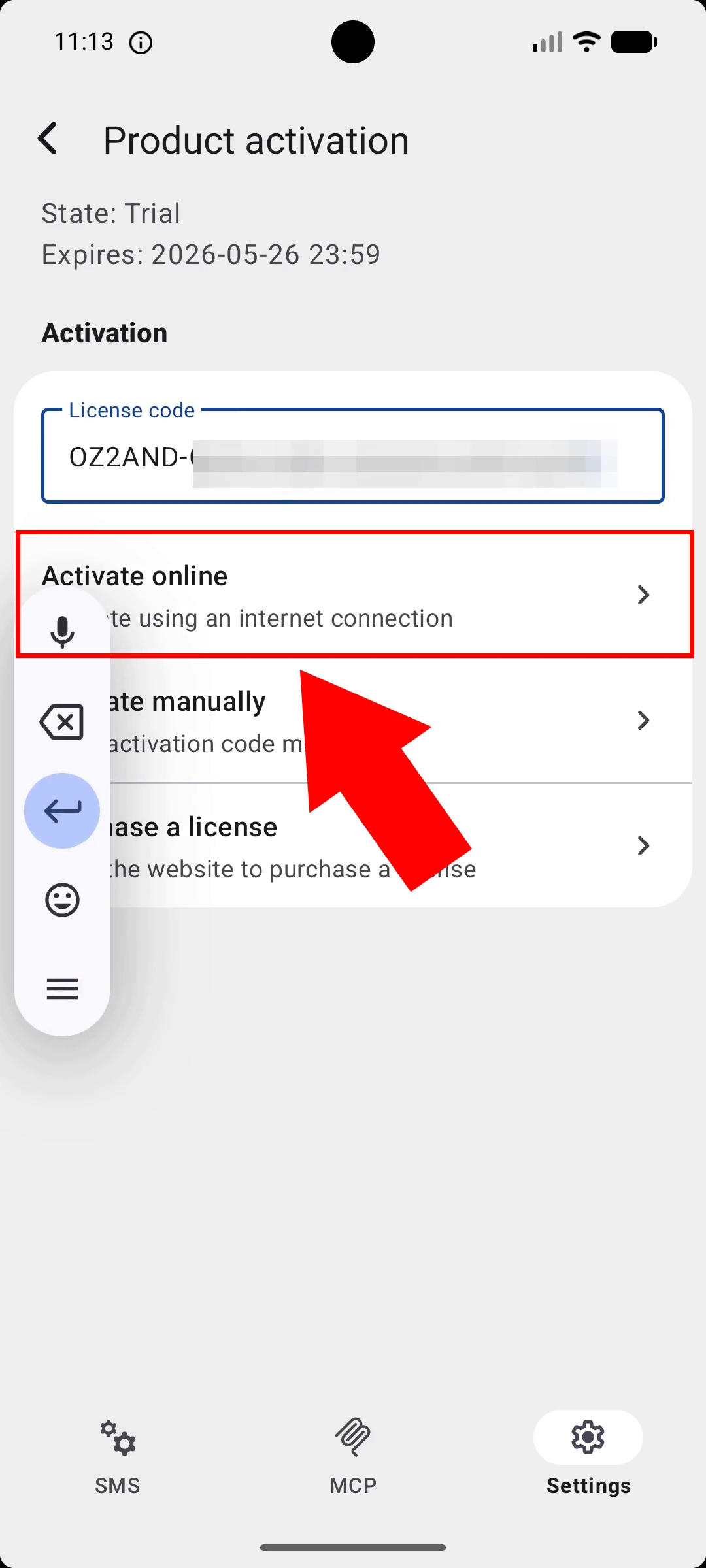
On the Product Activation screen, you will see a License code input field at the top of the Activation section. Carefully type or paste your purchased license key (typically in the format OZ2AND-...) into this field. Make sure the code is entered correctly before proceeding to select an activation method.
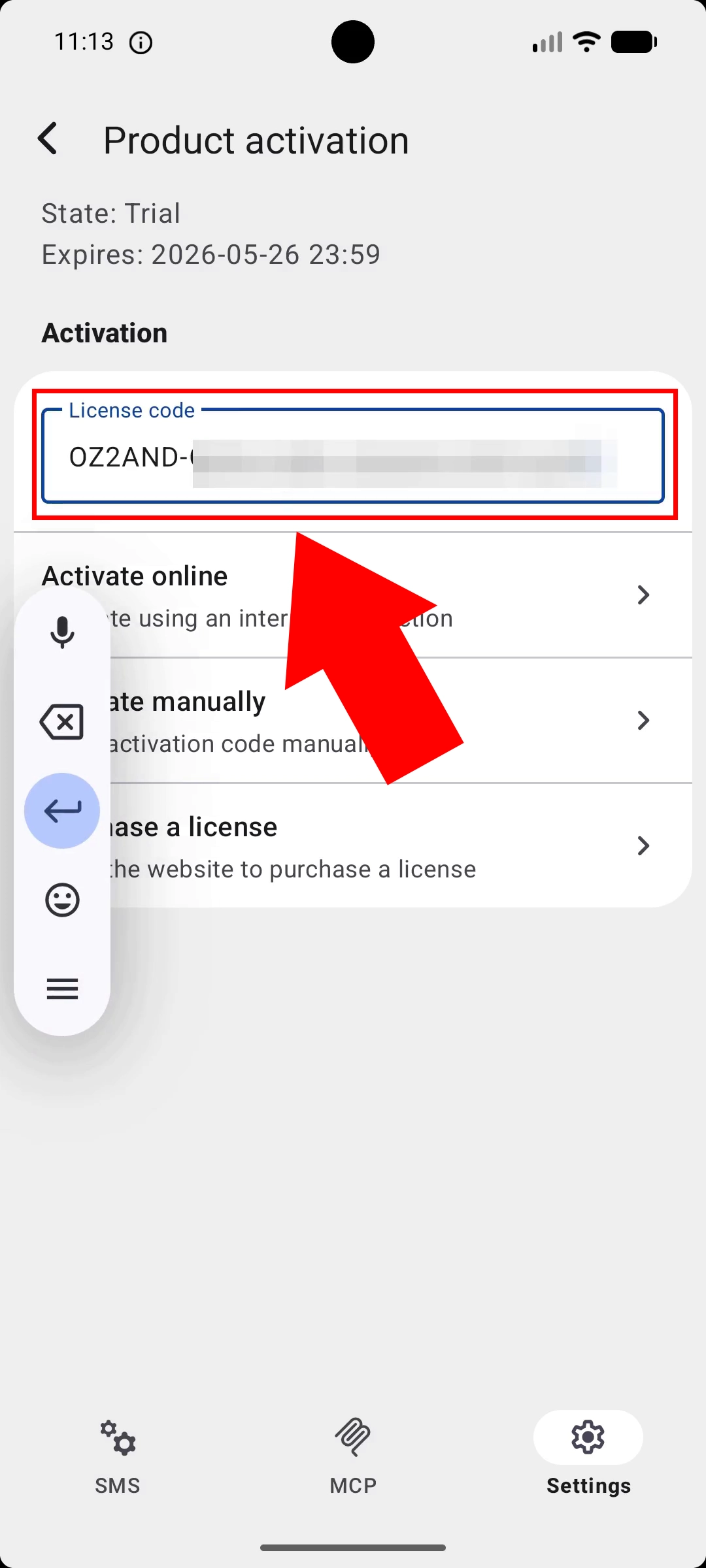
With the license code entered, tap the Activate online option, which uses your device's internet connection to validate and register the license with Ozeki's servers. This is the quickest and recommended activation method, as it automates the entire verification process without requiring manual steps. Ensure your Android device has an active internet connection before tapping this option.
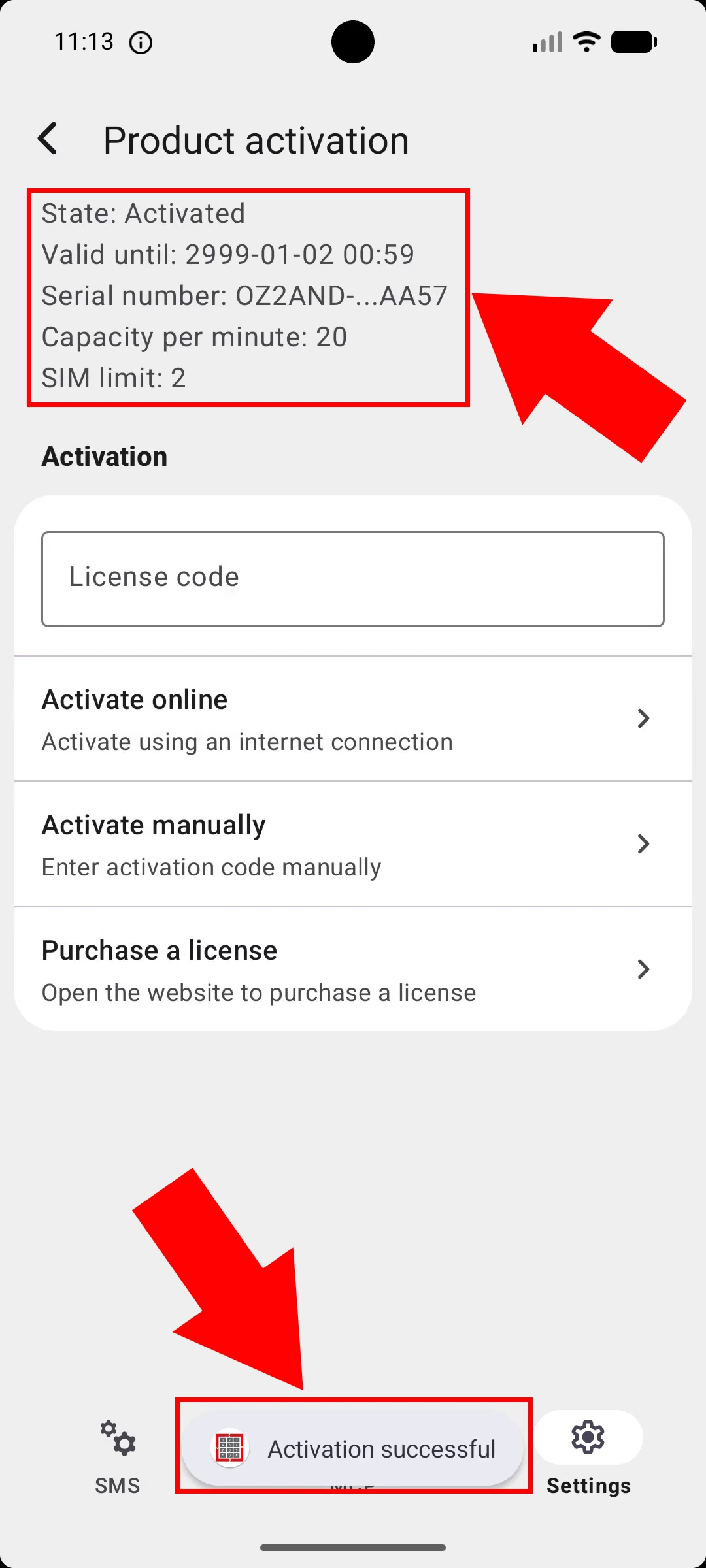
After successful online activation, the Product Activation screen will update to display State: Activated along with details such as the validity period, serial number, capacity per minute, and SIM limit. This confirmation screen indicates that your Ozeki Android SMS Gateway is now fully licensed and ready for production use. No further steps are needed — the gateway will operate according to the limits defined by your purchased license.
Summary
The Product Activation page of the Ozeki Android SMS Gateway documentation explains how to license and activate the OZEKI SMS Client 3.0 app on an Android device. It walks users through a five-step process: opening the Settings menu in the app, selecting the Product Activation option, entering the purchased license code, and choosing between online activation — which uses an internet connection to verify the license automatically — or manual activation for offline scenarios. An additional in-app option is available to purchase a license directly if one has not yet been acquired. Once activation is complete, the app confirms the status with full license details such as validity period, serial number, messaging capacity, and SIM limit, signaling that the gateway is ready for production use.